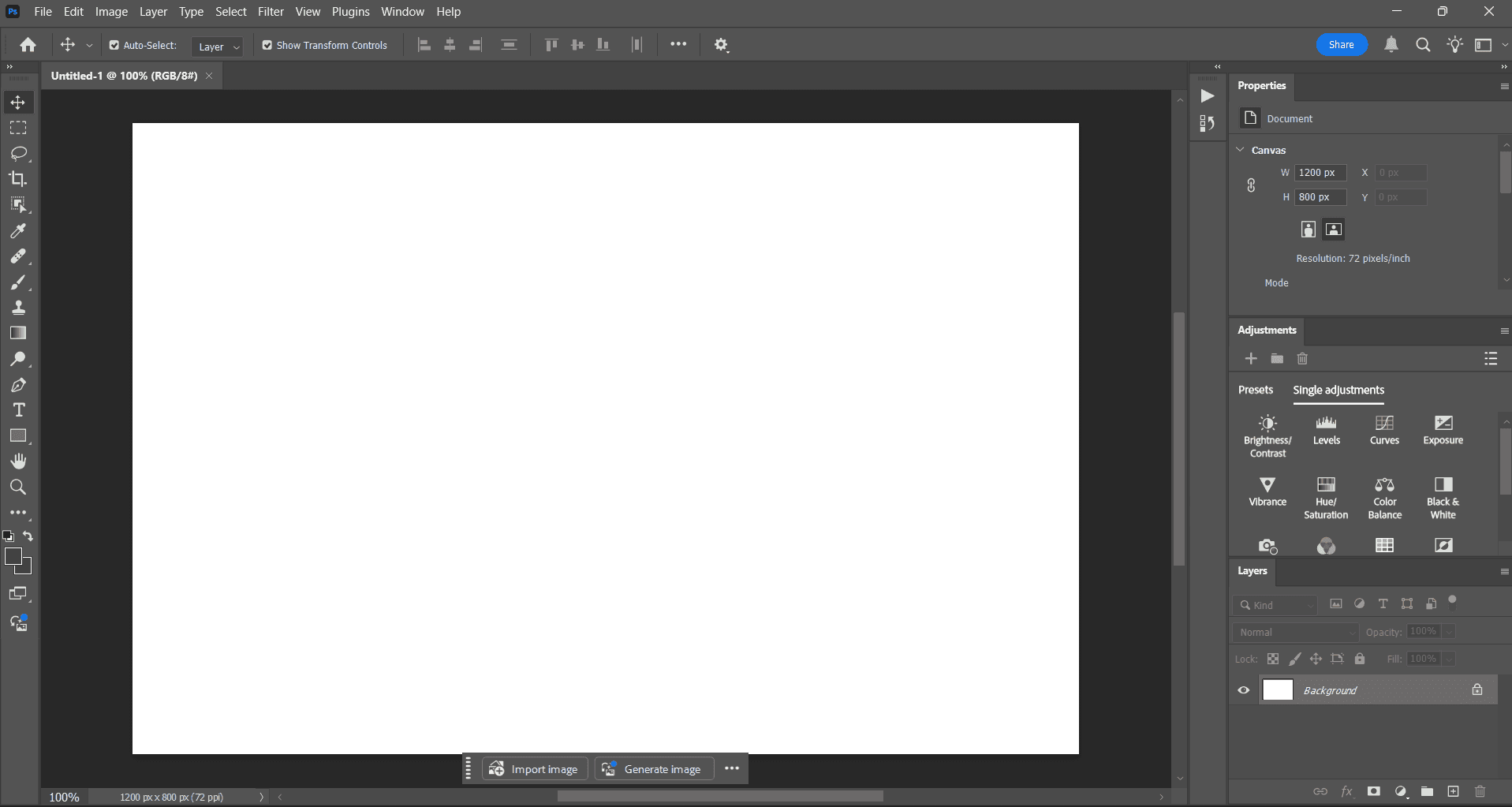
Adobe Photoshop

Visual Ergonomics Analysis of the Interface based on the Input Device used.
Duration: 2 weeks • Team: Anubhuti, Ranjabati, Ishita
most commonly used by designers
precision
ease of use
Cursor control, selection accuracy, and error rate
Physical strain, hand movement effort, and overall comfort
Photoshop relies heavily on precise cursor movements and frequent tool selections. The interface is optimized for general usability.
Does it account for the ergonomic and performance differences between a mouse and a trackpad?
OBJECTIVE
How does the choice of input device (mouse vs trackpad) affect:
efficiency
Time taken for task completion
TESTING USER BASE
Experts (designers who are familiarity with the software interface, shortcuts and tools. Some are used to using the mouse and some are used to using the trackpad.)
TASKS
fine motor precision
spatial accuracy
spatial perception
continuous control
precision in selection
cursor control stability
placement control
cursor control
visual accuracy
edge control
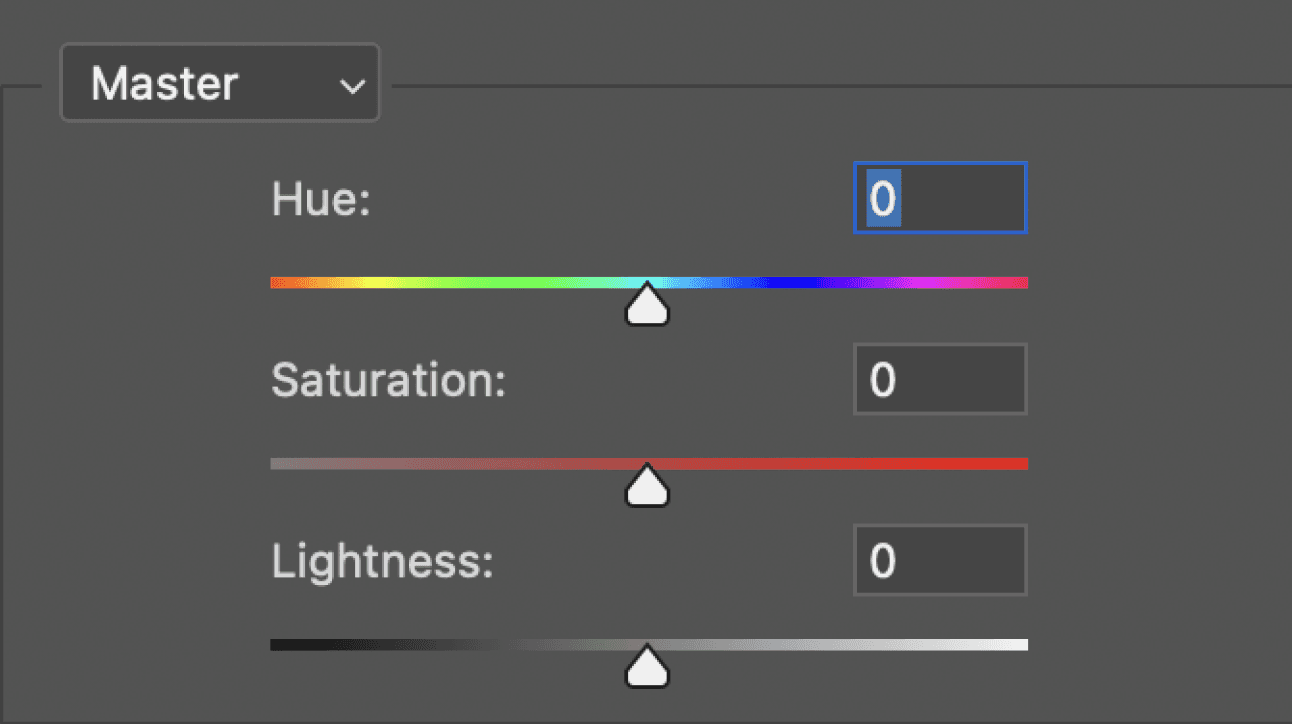
Duplicate image 1 and change hue to the same as image 2 , and save as JPEG.”
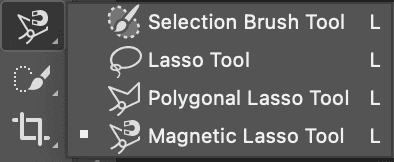
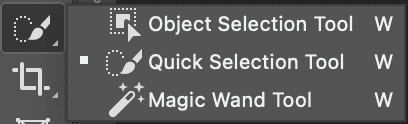
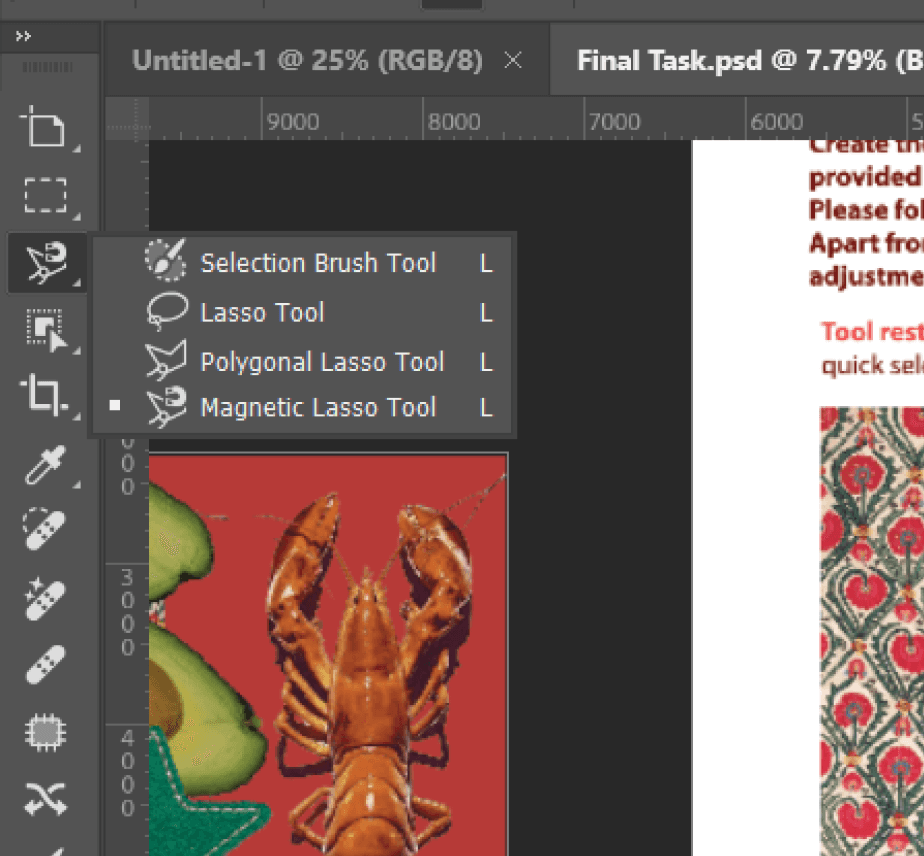
Combine 2 provided images into one layout using lasso/quick selection.
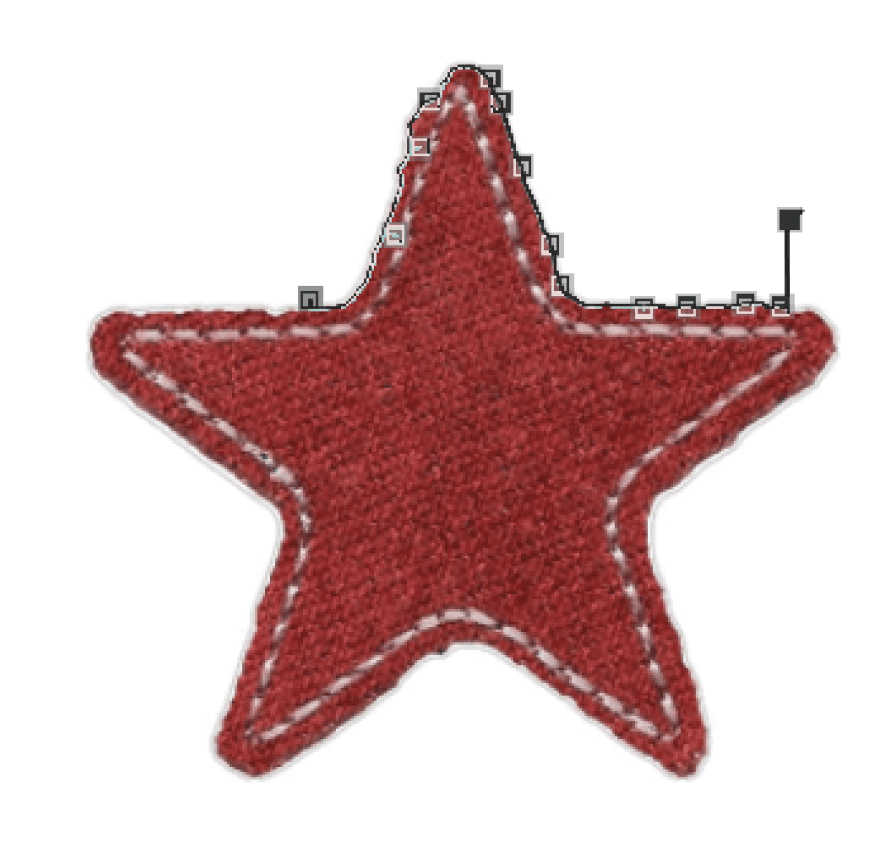
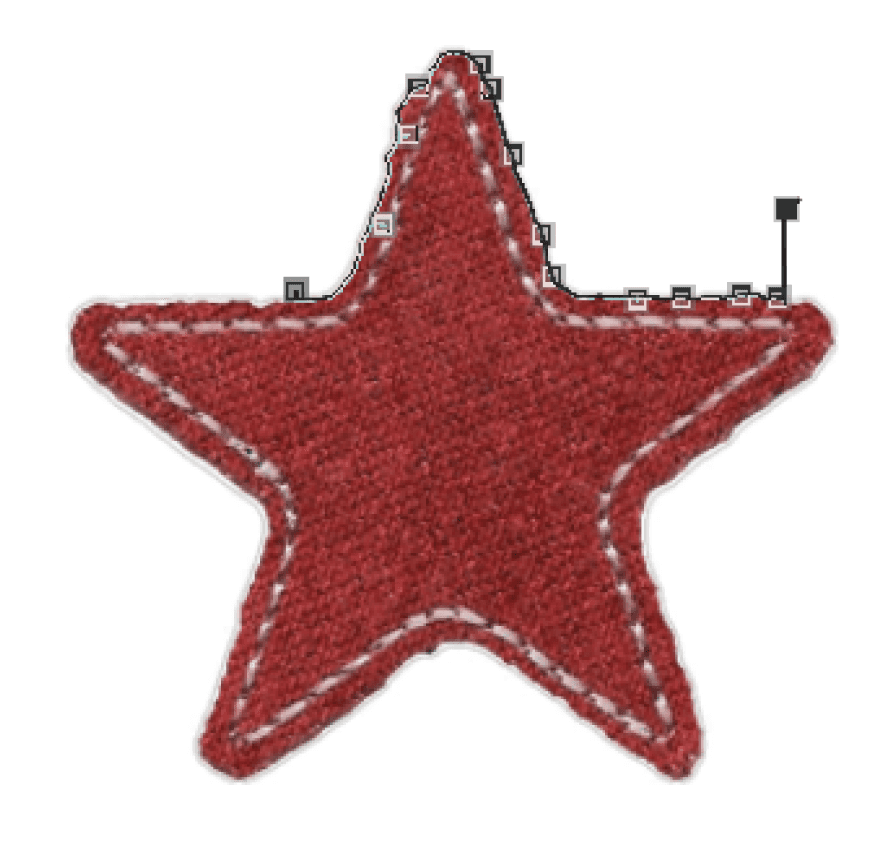
Cut a precise selection around the objects (e.g. Lasso) and move to the other box.
Use the Brush/Clone/Healing tool to remove the flowers change just the colour of the eyes.
Resize, rotate, and skew an image into perspective.
Menu Navigation and Sliders
Selection and Compositing
Precise Selection
Retouching and Precision Editing
Transformation and Perspective
TOOLS
PARTICIPANT TASK ANALYSIS: EFFICIENCY
Mouse
Trackpad
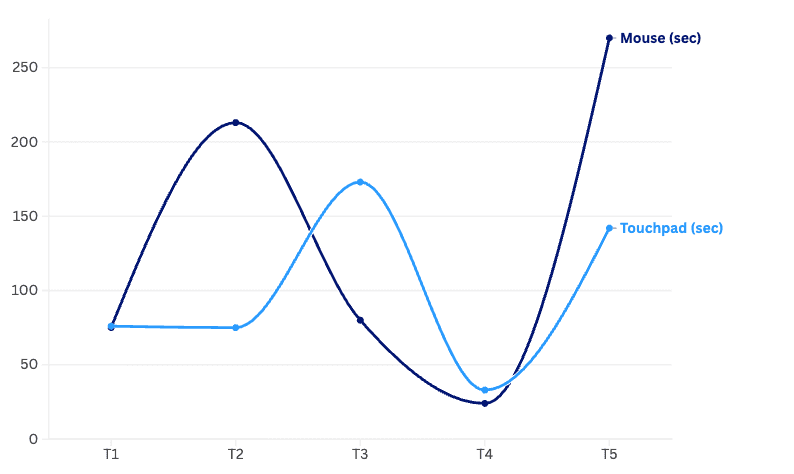
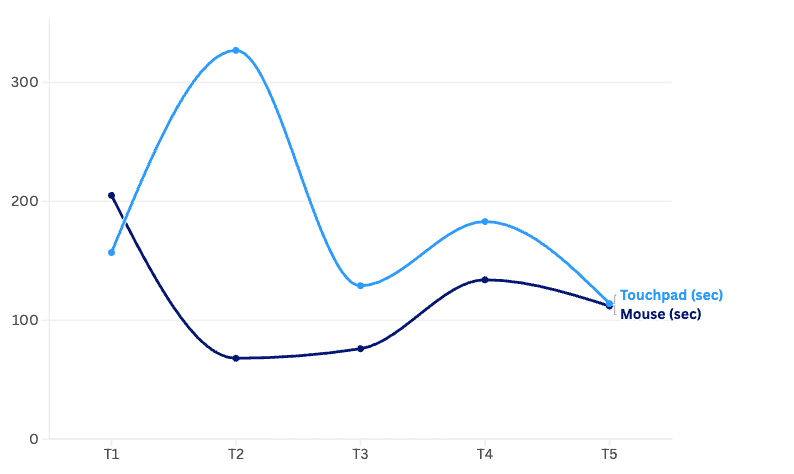
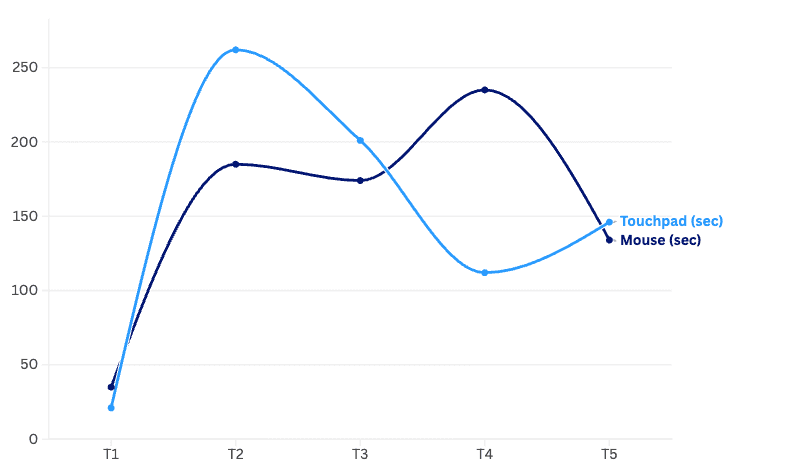
TASK-WISE EFFICIENCY
SUS: SYSTEM USABILITY TESTING
Vaibhav
Ravi
Ritu
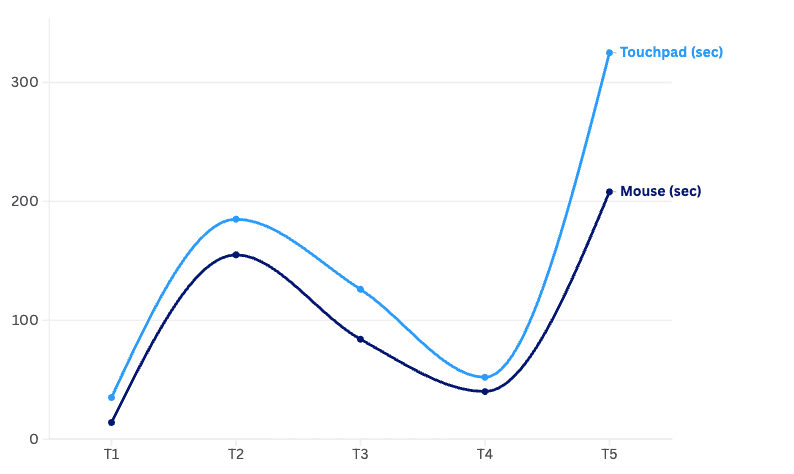
Ishu
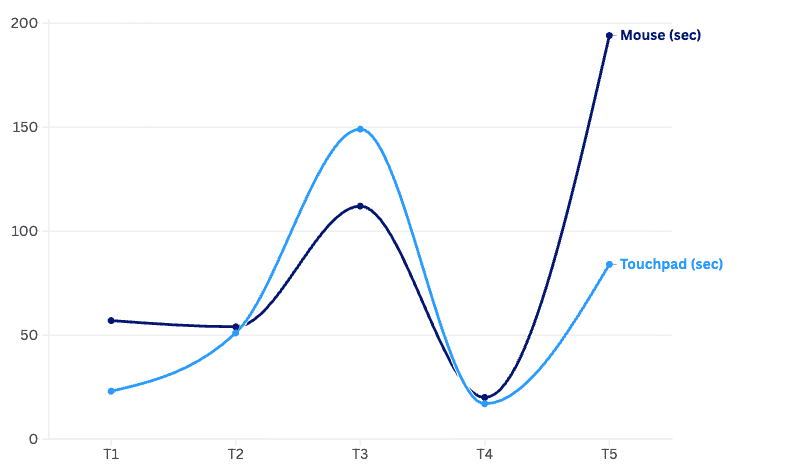
Parineta
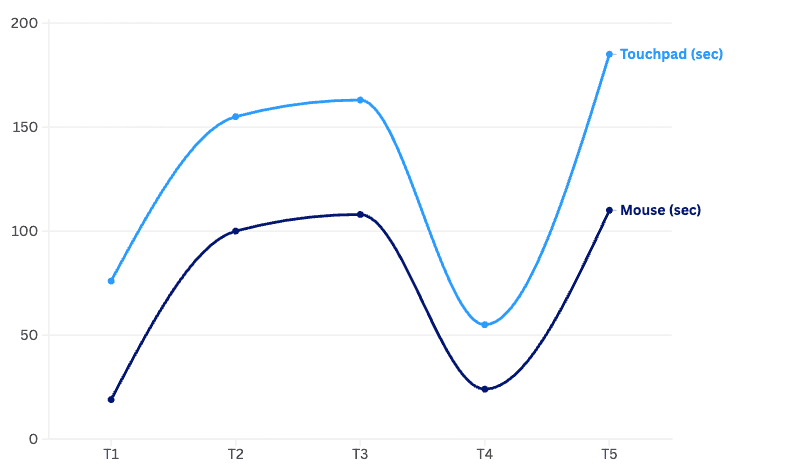
Tarika
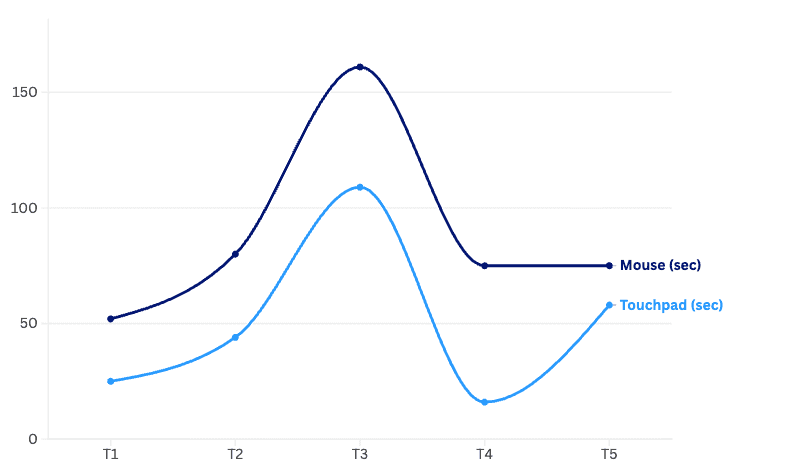
Aditi
18:19
15 min
14:22
10 min
7:37
6:53
5 min
0
Task 1
Task 2
Task 3
Task 4
Task 5
18:23
17:30
17:34
13:15
9:24
7:48
Mouse
Mouse
Trackpad
Trackpad
Trackpad shows higher variance in completion times with some tasks much slower and some faster than Mouse.
Mouse has more consistent timing, generally faster.
97.5
22.5
60
60
42.5
42.5
45
45
57.5
39.5
100
83
55
50
95
72
User 1
User 3
User 5
User 2
User 4
User 6
User 7
Mouse
Average SUS Score 78.9
Average SUS Score 44.57
Trackpad
7 Participants
HeURISTIC EvALUATION
1. Visibility of system status
Mouse
Trackpad
Clear cursor changes (brush, move tool). Easy to hover over small icons.
Cursor feedback visible, but hover precision suffers on small targets.
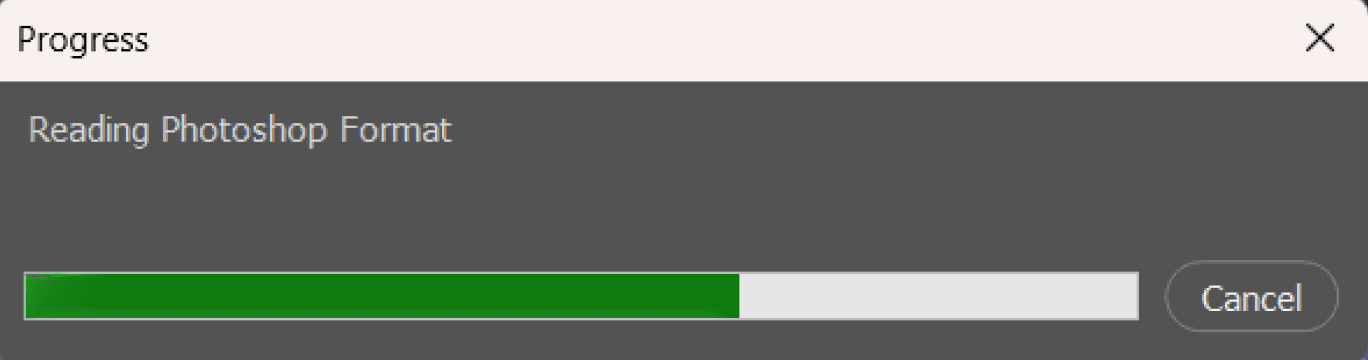
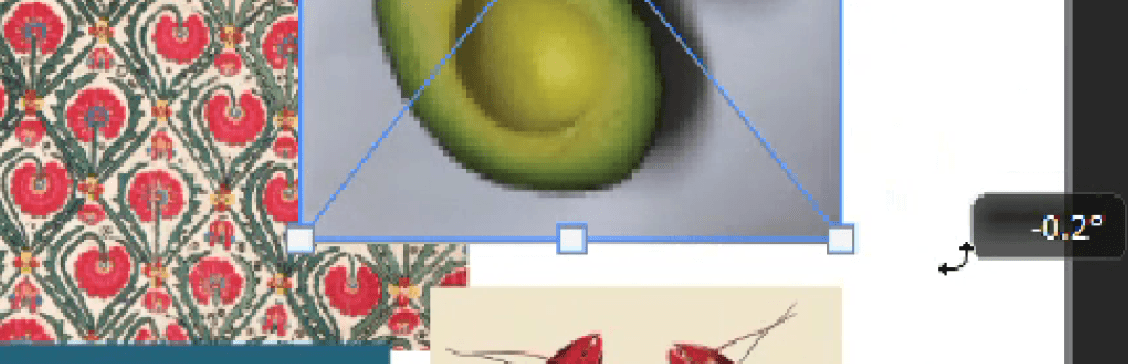
clear progress state
2. Match Between System & Real World
3. User Control and Freedom
4. Consistency and Standards
5. Error Prevention
7. Flexibility and Efficiency of Use
8. Aesthetic and Minimalist Design
9. Help Users Recognize, Diagnose, and Recover from Errors
10. Help and Documentation
6. Recognition Rather Than Recall
Mouse
Mouse
Mouse
Mouse
Mouse
Mouse
Mouse
OVERVIEW
Mouse
Trackpad
Trackpad
Trackpad
Trackpad
Trackpad
Trackpad
Trackpad
Trackpad
Clear cursor changes (brush, move tool). Easy to hover over small icons.
Undo/redo works smoothly, accidental clicks are rare due to higher precision.
Photoshop is consistent with decades of mouse-based editing paradigms.
Photoshop is consistent with decades of mouse-based editing paradigms.
Supports expert shortcuts + fine motor control, making advanced workflows efficient.
Dense UI manageable with precise pointing.
Mistakes (due to misclicks, i.e., specifically mouse tool caused errors) are rare, and Photoshop has strong recovery features.
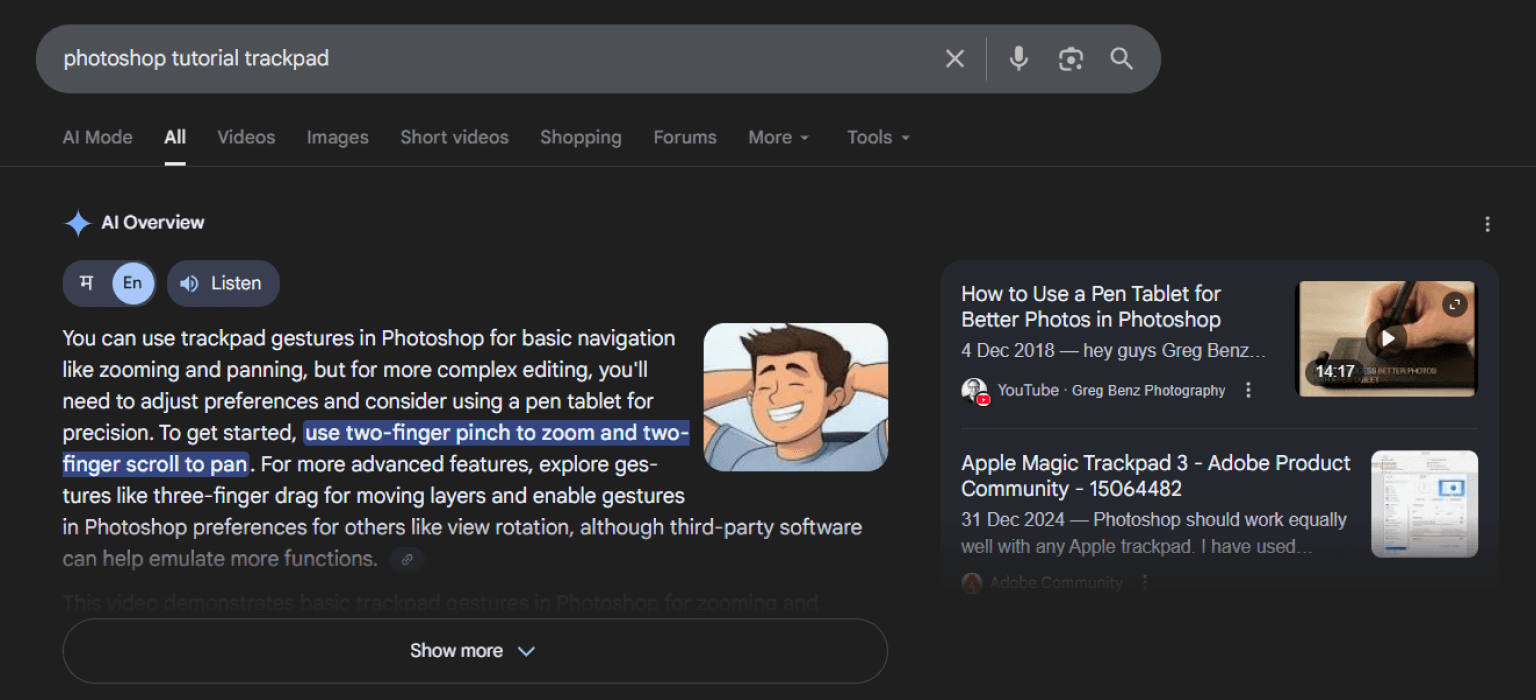
Photoshop offers tutorials, but none tailored for using touchpad effectively. It assumes mouse/pen workflows.
Tool icons + hover labels are easy to explore.
Cursor feedback visible, but hover precision suffers on small targets.
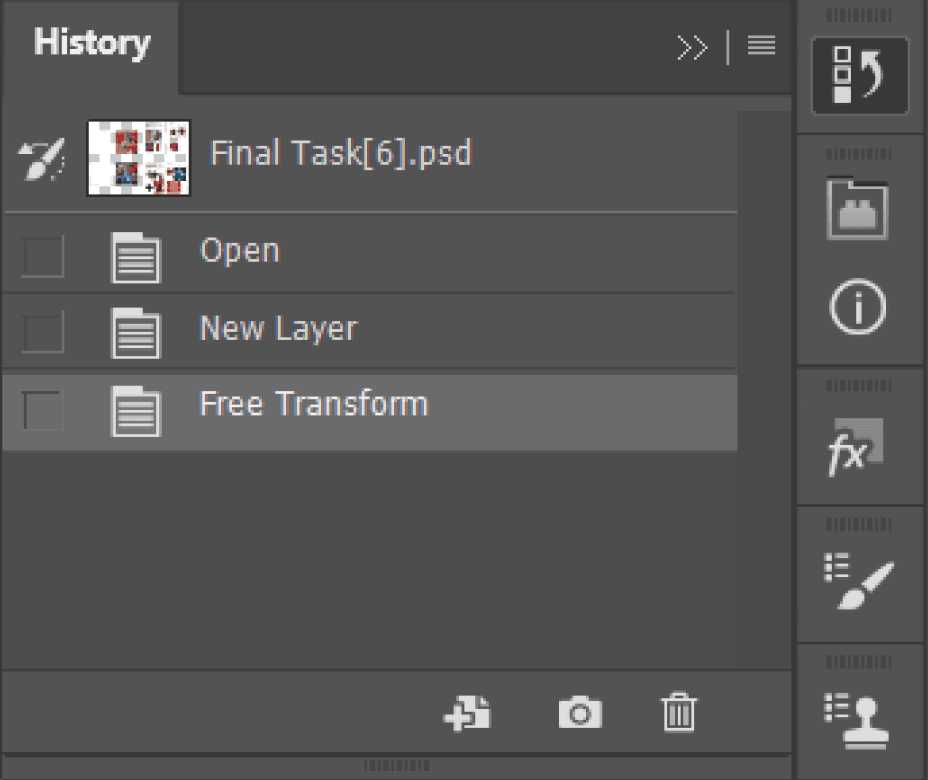
Mis-gestures (zoom/pan when intending to paint) increase error rate. Escape routes exist (Undo, History Panel).
Some shortcuts and gestures conflict with OS-level gestures (e.g., macOS swipe navigation vs. Photoshop pan).
Some shortcuts and gestures conflict with OS-level gestures (e.g., macOS swipe navigation vs. Photoshop pan).
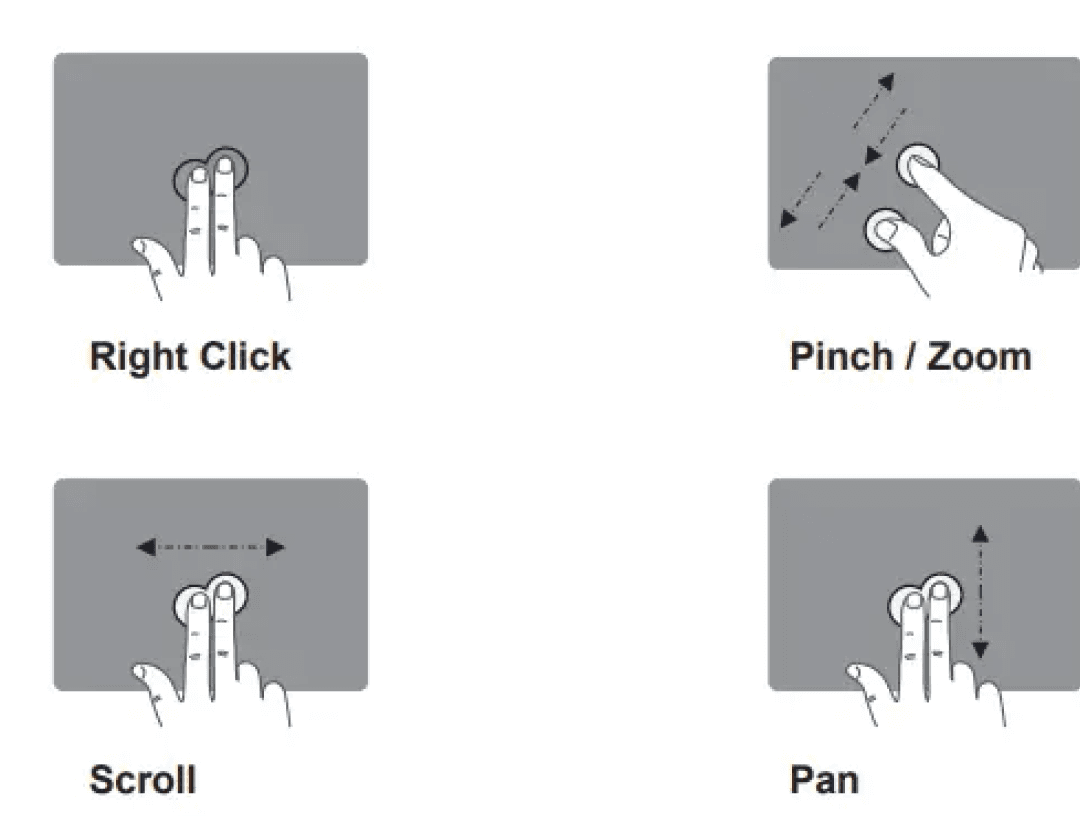
Gestures are great for broad navigation (pan/zoom), poor for micro tasks (brushwork, lasso).
Small hit targets feel cluttered and harder to reach → UI density is a usability barrier.
Frequent accidental gestures → but recovery (Undo, History, Reset Tool) is always available.
Effort to accurately click small icons is higher. May lead to memorizing shortcuts instead.
hover precision required to see icon switch indicating changing between tools
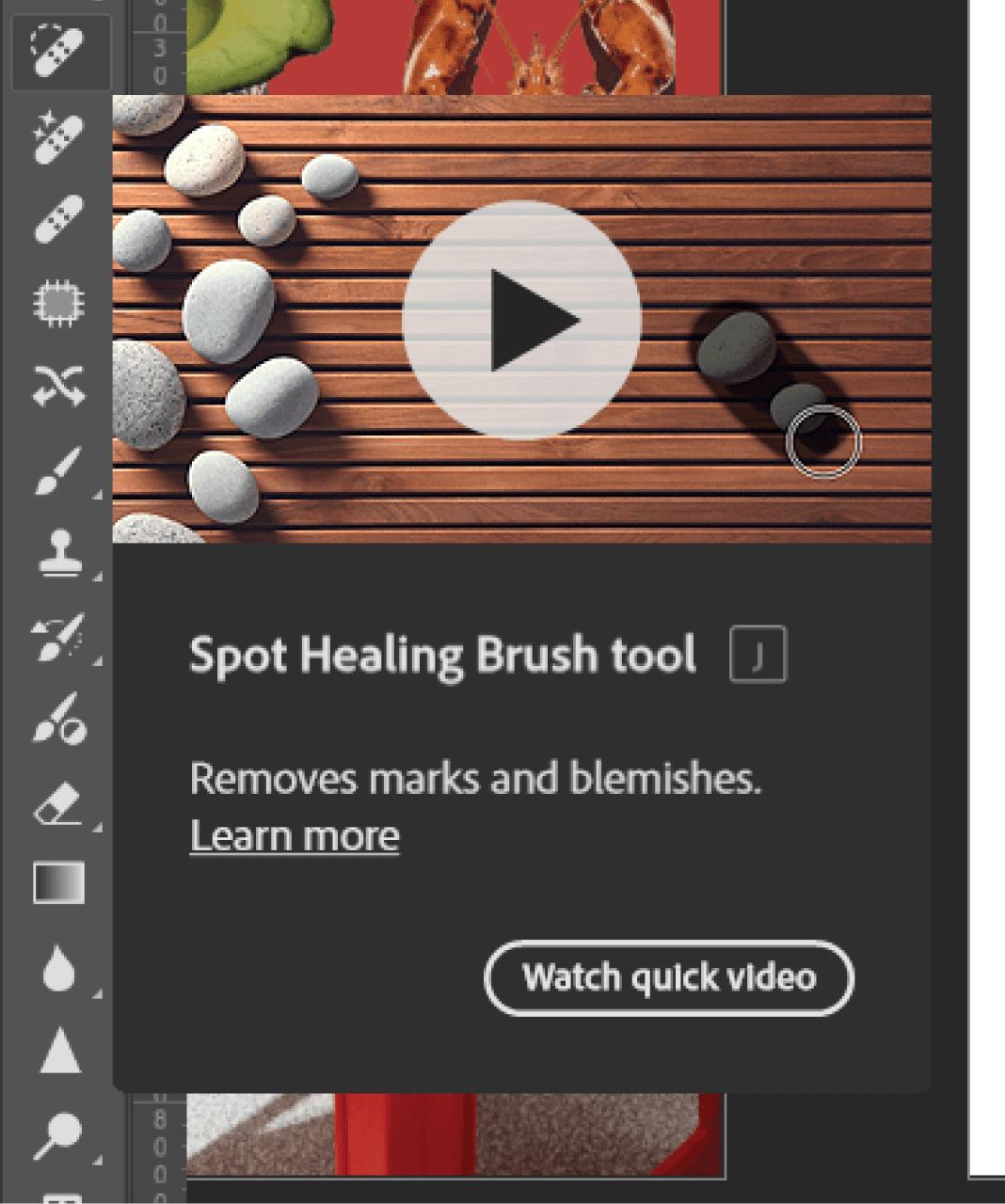
hover display shows tool, description, and shortcut
UI is dense especially when additional windows and menus are active
gemini and most top youtube videos assume pen tablet or mouse workflows
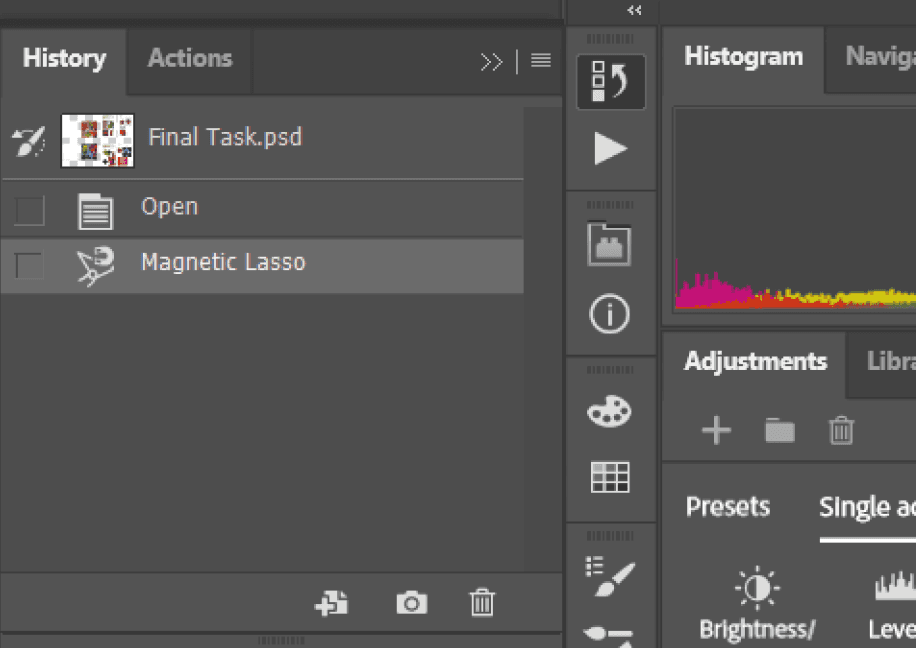
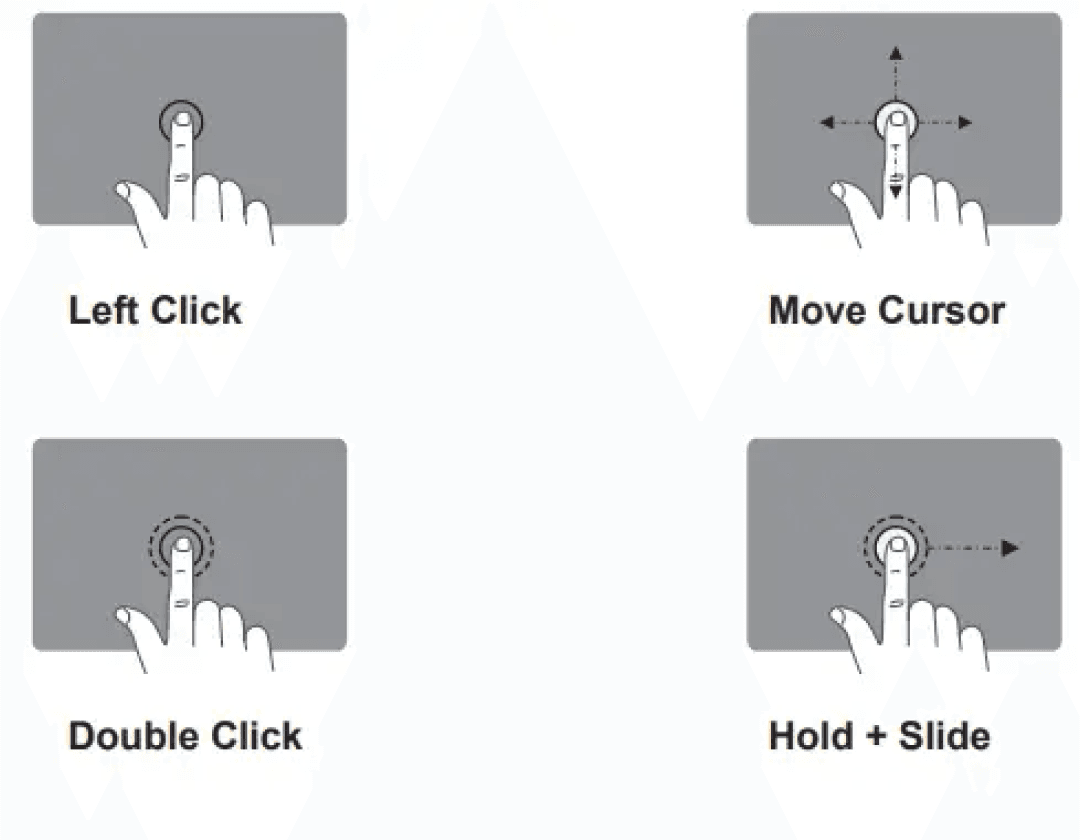

TASK RESULTS INSIGHTS
Mouse
Trackpad
Mouse
Trackpad
general navigation (MAC)
general navigation (windows)
Precision tasks
Mouse
Trackpad
Performance highly depends on preference.
Platform-specific familiarity can influence device preference and efficiency.
Mouse had larger physical space and finer control = more accurate selection.
Trackpads lacked precision in micro-adjustments and detailed editing due to limited surface area.
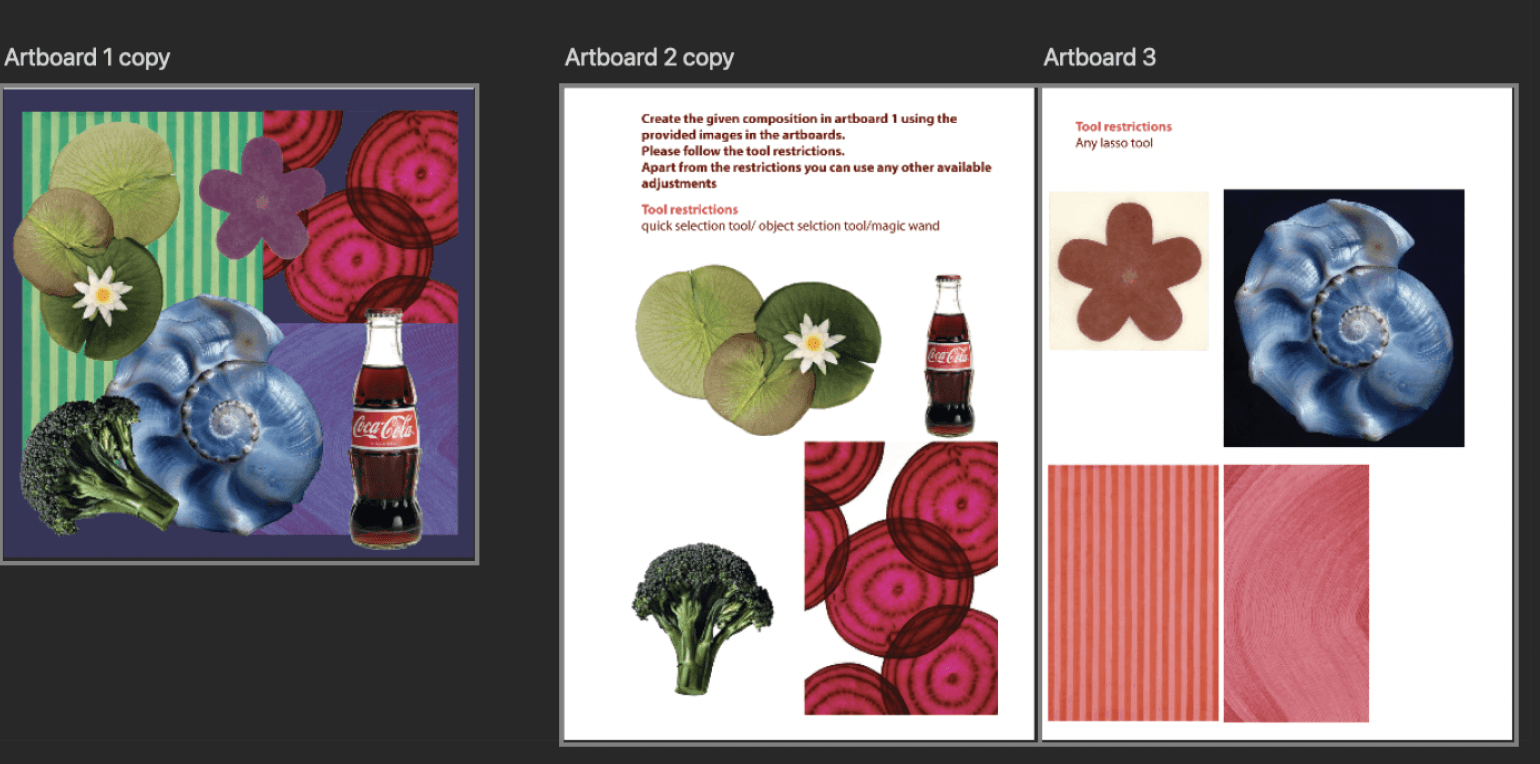
The first five tasks tested short, isolated actions, but didn’t reflect real-world Photoshop use.
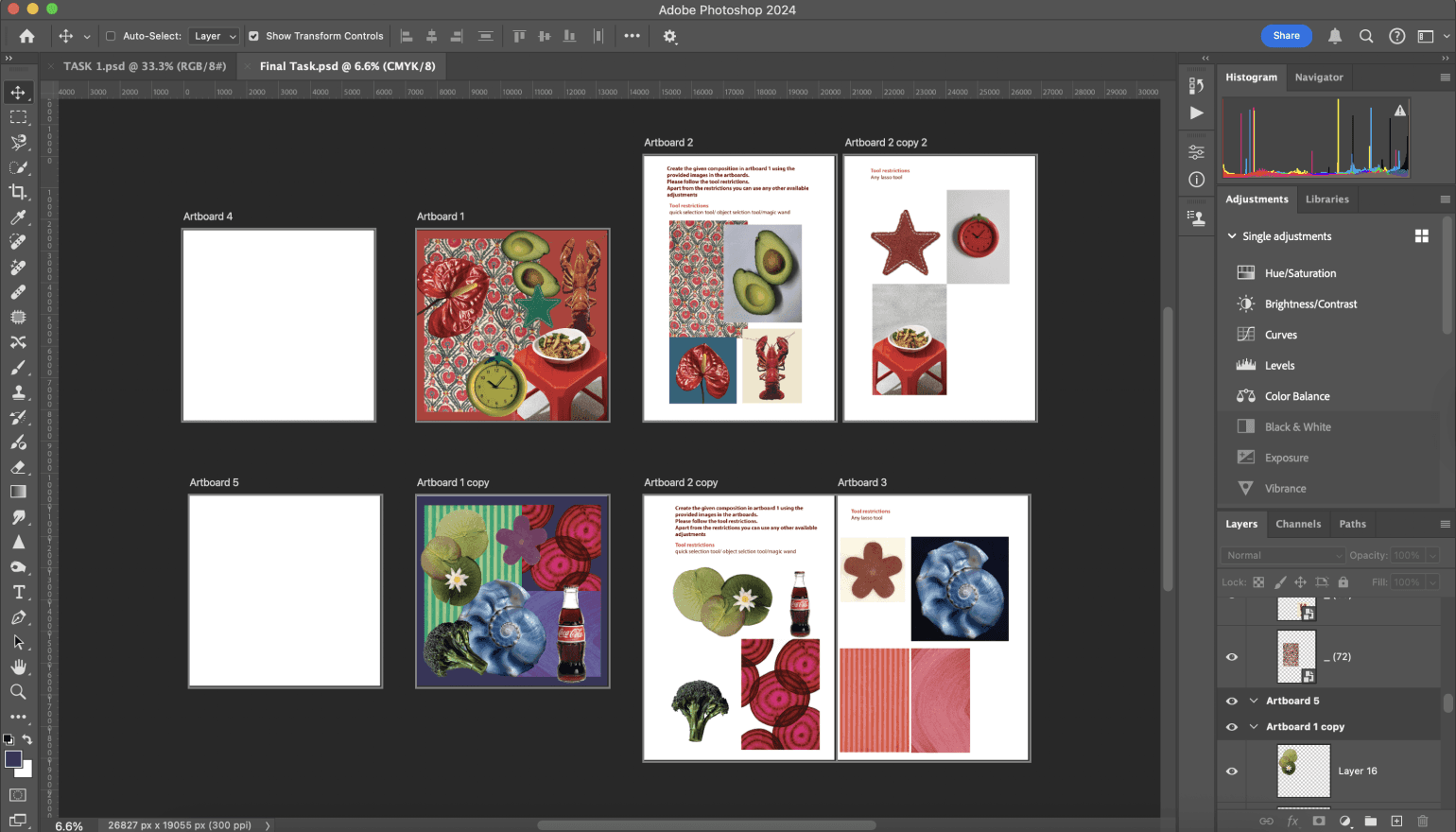
Task 2 combined all those interactions, like selection, masking, layering, and color correction, into one integrated composition to test overall workflow efficiency.
TASK 2: OBJECTIVE
sequential tool use
sustained performance
fatigue
cognitive load
workflow adaptation
use of shortcuts
TASK 2: HTA
PARTICIPANT EFFICIENCY
NASA-TLX
15 min
10 min
10:25
8:00
9:06
14:26
10:46
10:15
9:35
11:05
10:02
9:20
9:00
9:01
9:34
9:12
8:55
9:50
9:20
9:11
5 min
0
P1
P3
P5
P7
P2
P4
P6
P8
P9
82:27
93:33
P1
40
50
60
70
30
30
20
P3
P5
P7
P2
P4
Participants
NASA-TLX Score
P6
P8
P9
Trackpad : 55.106
mouse : 60.77
More efficiency with mouse for majority
Total efficiency
2 participants had more efficiency with trackpad
General efficiency difference of 1-2 minutes
Mean Workload
Smaller precise movements for selection tools
Bigger movements required to access different tools
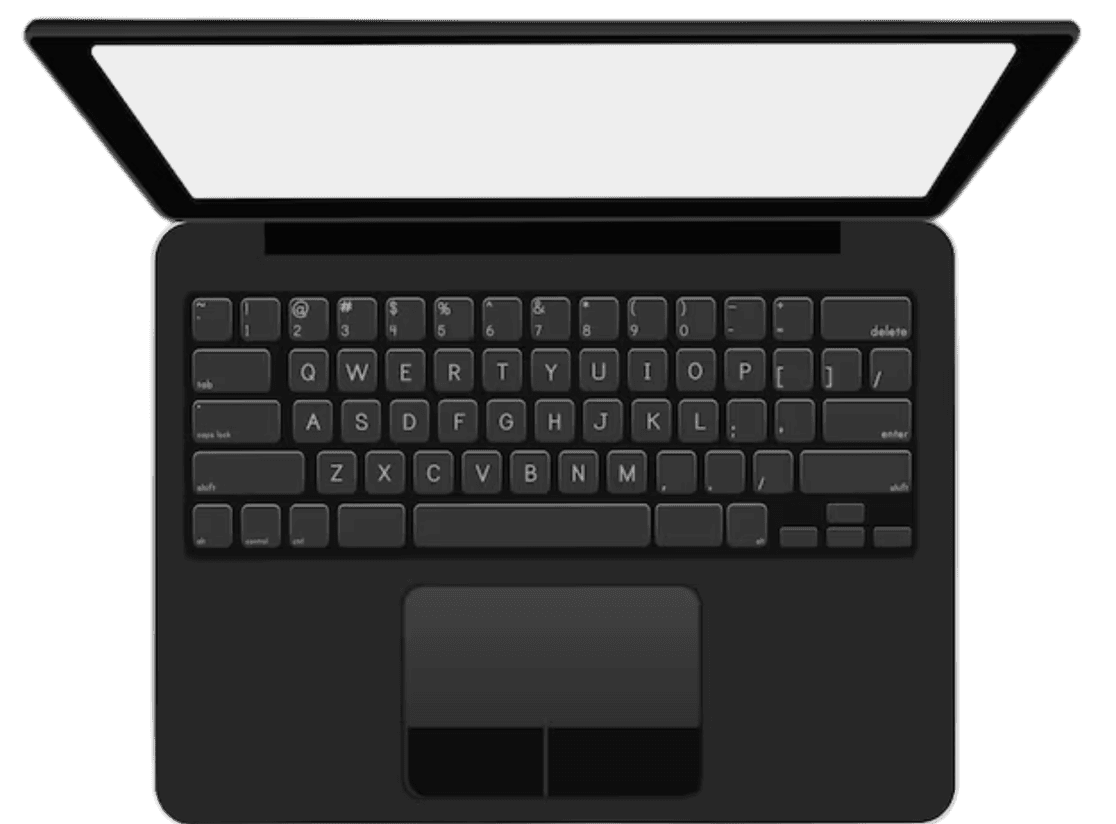
Moving area of a trackpad
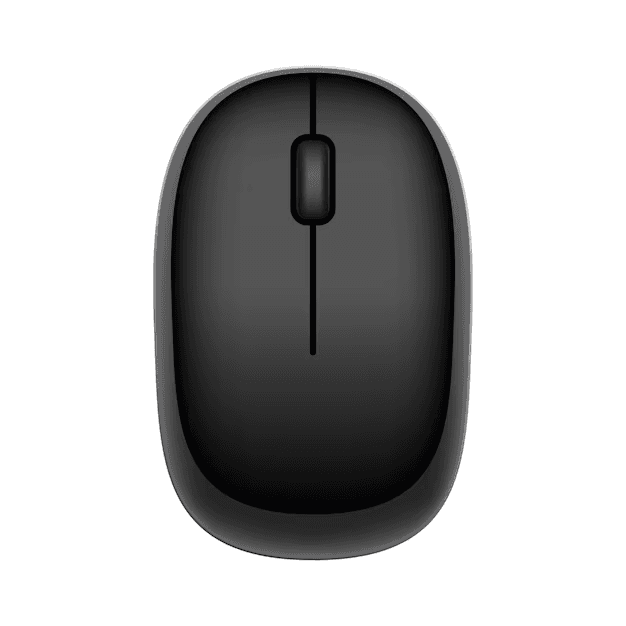
Moving area of a mouse
The physical magnification of movement makes achieving visual accuracy easier.
A mouse provides more physical area for cursor movement translation.
Why use shortcuts?
Sustained movement (panning)
Precision
To execute secondary/modifier actions (e.g., holding Shift for a straight line).
Excellent: Fluid, continuous
High: Fine motor control
Mouse
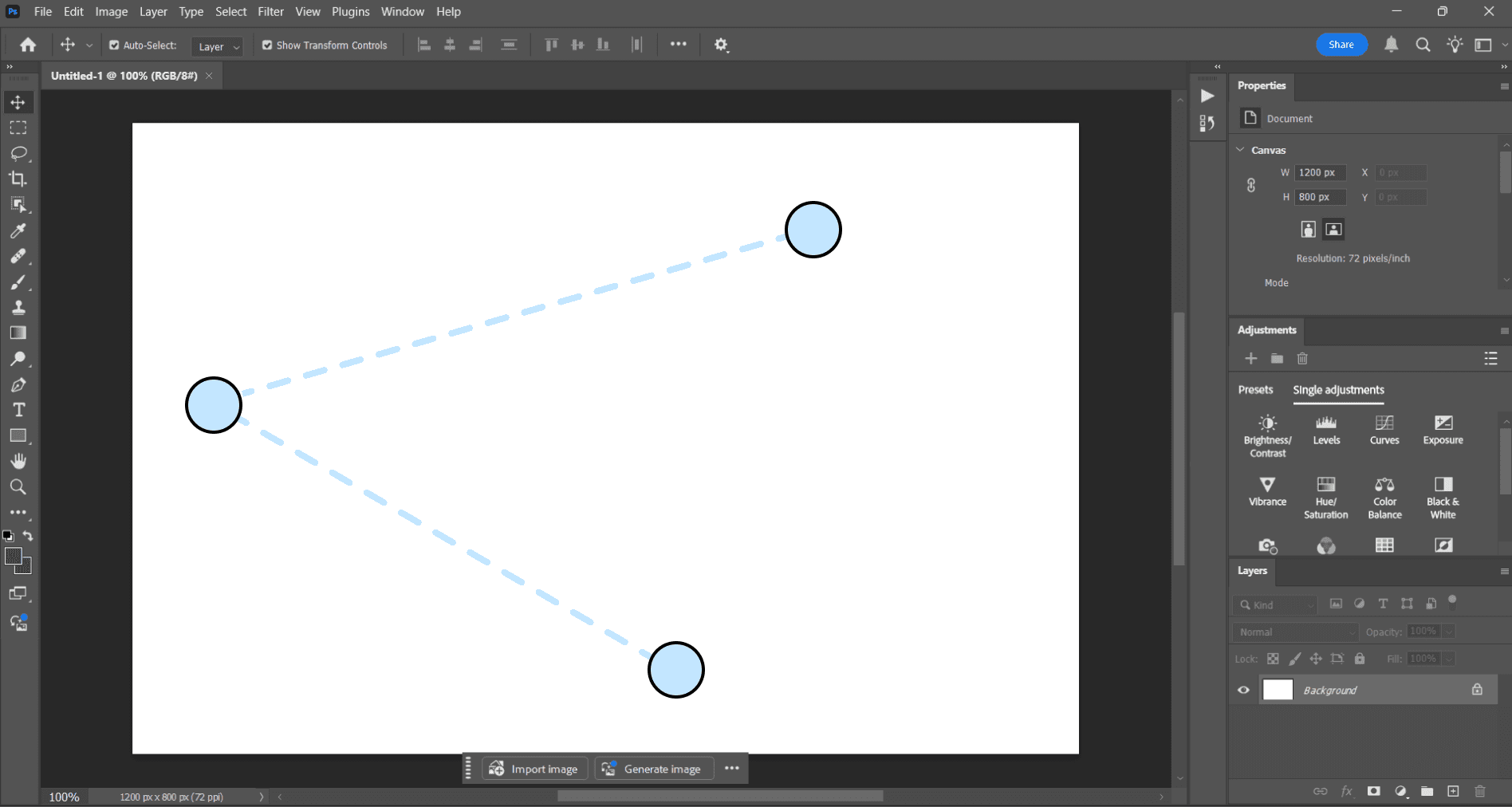
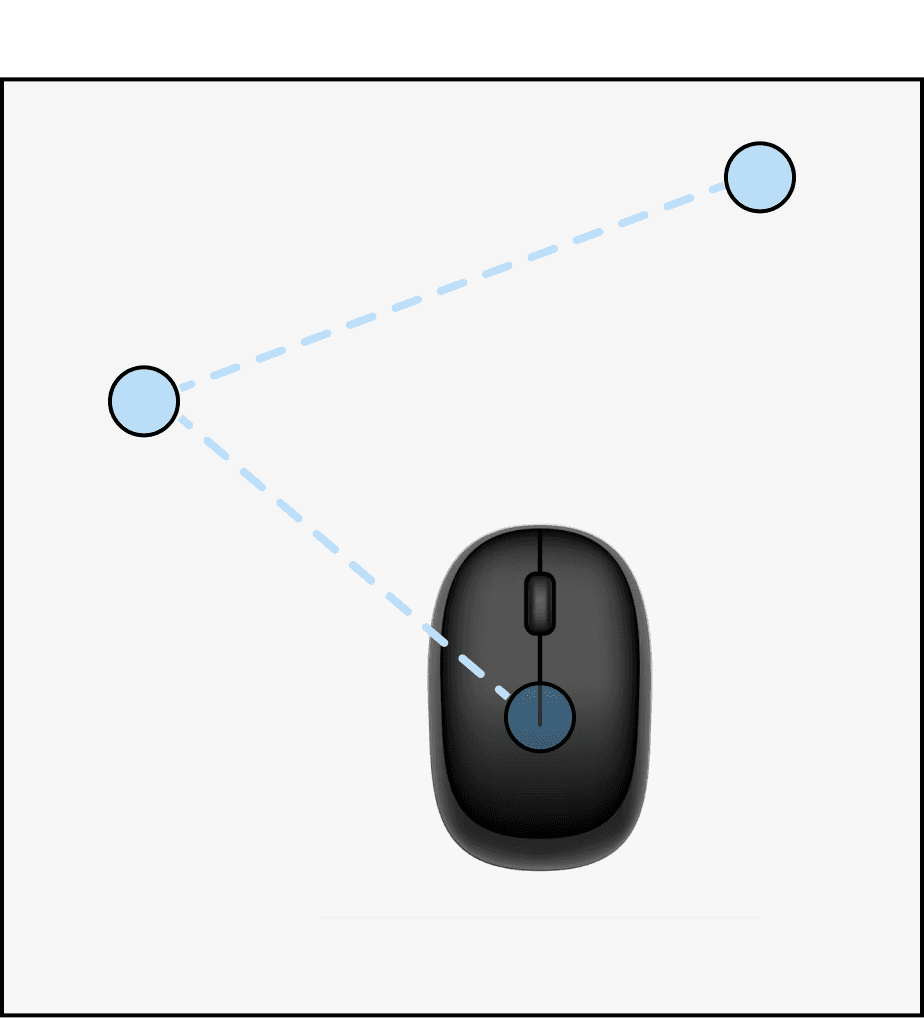
Bigger movements of hand required to make the cursor move
Sustained movement (panning)
Why use shortcuts?
Trackpad users end up using shortcuts more to reduce lifting and re-positioning hand/finger.
Precision
Difficult: Requires constant finger movement/lifts
To execute primary/view-control actions (e.g., Ctrl + +/- for zoom).
Moderate: Relies on sensor resolution and finger stability
Trackpad
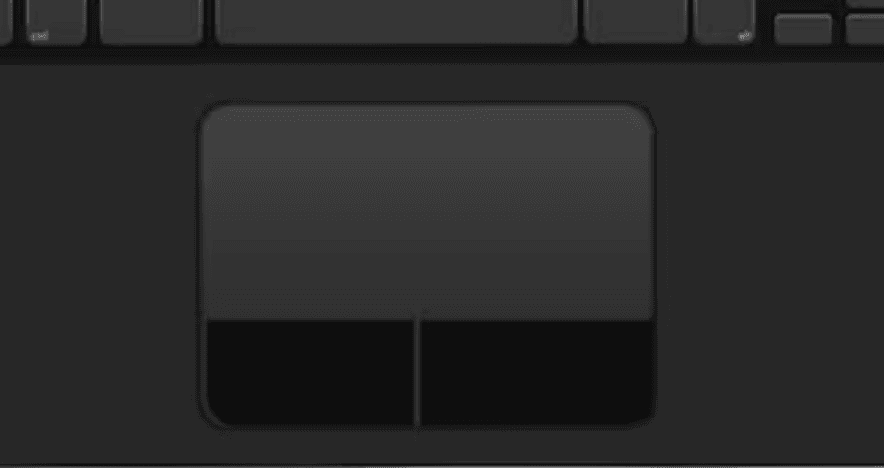
Very small finger movements may move the cursor at large distances across the screen
TASK INSIGHTS:
Efficiency & movement
Mouse movement can be impacted by the nature of the surface, an issue NOT faced by trackpad users.
TASK INSIGHTS:
SHortcuts and adaptations
Efficiency and Movement Freedom
Shortcut Dependency & Workflow Adaptation
Frustration and Cognitive Load (NASA-TLX Findings)
Consistent higher efficiency
Especially in detailed selections and compositional alignment.
Mouse users preferred physical movement for control, rarely using shortcuts unless absolutely needed.
Lower mental effort, higher physical engagement, since they reliance is more on manual movements.
Limited free movement
Particularly during intricate dragging or rotation tasks.
Trackpad users relied more heavily on keyboard shortcuts for tool switching, zooming, and panning.
Higher mental effort but lower physical fatigue, due to the cognitive load of remembering and executing shortcuts.
observations
mouse
trackpad
Short-term tasks
Movement-based, mouse efficiency dominated.
Task set 1
long-term task
Trackpad users performed better than before, closing the gap in time and accuracy due to increased shortcut use.
Task set 2
performance insights
thanks for scrolling